Most sites with scroll effects, like reading progress bars, fade-ins, parallax bands and headers that shrink as you scroll, run them on JavaScript. A scroll listener or an IntersectionObserver works out where you are on the page and writes a style to match. CSS can now do all of that on its own.
Scroll-driven animations tie an ordinary @keyframes animation to scroll position instead of time. With Firefox 159, released on October 27, 2026, they ship in all three browser engines.
Where browser support stands
- Chrome and Edge 115 (July 2023). Runs off the main thread since 116.
- Safari and iOS 26.0 (September 2025). Moved off the main thread in 26.4, with accuracy fixes in 26.5.
- Firefox 159 (October 27, 2026). Previously behind the
layout.css.scroll-driven-animations.enabledflag. - Older browsers show the finished, visible state, as long as the animation sits inside
@supports.
Firefox support is only a day old in stable, so Firefox ESR users and anyone who hasn’t updated won’t have it yet. Before 159, global support was around 83%. That’s why every pattern below is progressive enhancement: without support, the effect doesn’t animate, but the content is never hidden. A related property, animation-trigger, for animations that play once, isn’t in every browser yet.
Five effects you can move to CSS
1. Reading progress bar
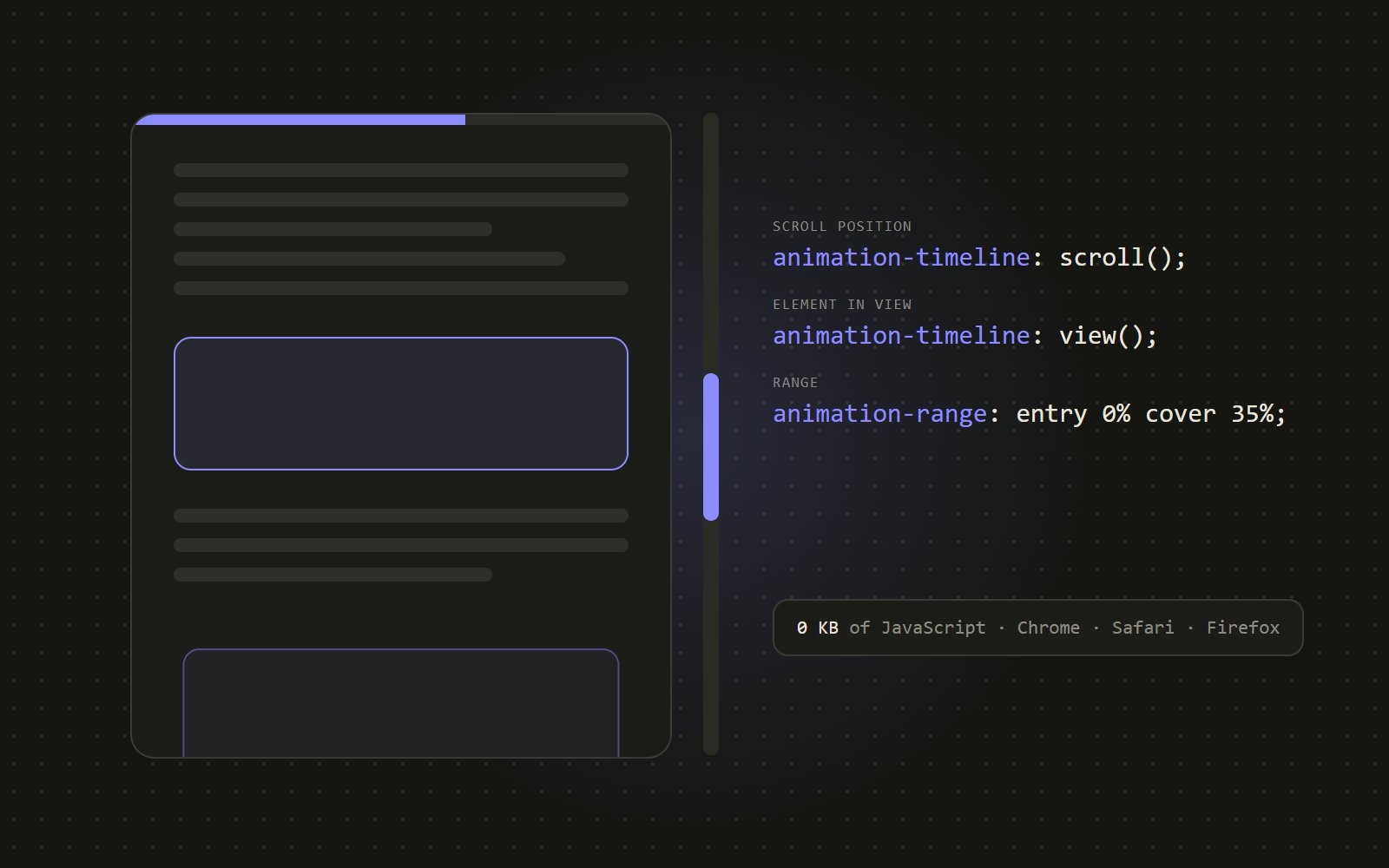
This replaces a scroll listener that writes a width on every frame. scroll(root block) means the page’s own vertical scroll.
@keyframes grow {
  from { transform: scaleX(0); }
  to   { transform: scaleX(1); }
}
.progress {
  position: fixed; inset: 0 0 auto;
  height: 4px;
  transform-origin: 0 50%;
  animation: grow auto linear both;
  /* after the shorthand, which resets it */
  animation-timeline: scroll(root block);
}
2. Reveal as it scrolls into view
This replaces an IntersectionObserver that toggles a class. view() tracks the element itself as it crosses the screen, and animation-range picks which part of that journey the animation covers.
@keyframes reveal {
  from { opacity: 0; transform: translateY(36px) scale(.96); }
  to   { opacity: 1; transform: none; }
}
.card {
  animation: reveal auto linear both;
  animation-timeline: view();
  /* start as it peeks in, finish once
     35% of its path is covered */
  animation-range: entry 0% cover 35%;
}
3. Parallax image band
A named view timeline lets the band be the thing being tracked while the image inside it moves. No scroll math and no resize handlers.
.band {
  overflow: clip; /* not hidden: see the gotchas */
  view-timeline: --band;
}
.band .layer {
  position: absolute; inset: -22% 0;
  animation: parallax auto linear both;
  animation-timeline: --band;
}
@keyframes parallax {
  from { transform: translateY(-16%); }
  to   { transform: translateY(16%); }
}
4. Sticky header that condenses
A pixel range makes the animation run over the first 120px of scrolling, then hold.
.site-head {
  position: sticky; top: 0;
  animation: solid-head auto linear both;
  animation-timeline: scroll(root block);
  animation-range: 0 120px;
}
.site-head .logo {
  animation: shrink-logo auto linear both;
  animation-timeline: scroll(root block);
  animation-range: 0 120px;
}
@keyframes shrink-logo { to { transform: scale(.72); } }
5. Carousel focus
Timelines work on sideways scrollers too. Paired with native scroll snapping, a simple carousel doesn’t need a slider library at all.
.track {
  display: flex;
  overflow-x: auto;
  scroll-snap-type: x mandatory;
}
.slide {
  scroll-snap-align: center;
  animation: focus auto linear both;
  animation-timeline: view(inline);
}
@keyframes focus {
  0%, 100% { transform: scale(.8); opacity: .45; }
  50%      { transform: scale(1);  opacity: 1; }
}
Why it’s smoother
A JavaScript scroll animation needs the browser’s main thread on every frame. The scroll event fires, the handler reads the position, then it writes a style. When the main thread is busy with analytics, a chat widget or a heavy page builder script, those frames arrive late and the effect stutters.
A CSS scroll timeline that animates transform or opacity is handled by the compositor instead, so it keeps pace with the scroll whatever else the page is doing.
Google’s published case study from Tokopedia reports average CPU while scrolling dropping from 50% to 2%, and about 80% fewer lines of code than the same effects built on scroll events. Those figures come from Google’s developer blog and one company’s own report, not independent benchmarks. Before switching a site over, measure it yourself: a Lighthouse run before and after, comparing Total Blocking Time and Interaction to Next Paint.
The gotchas
overflow: hiddenbreaksview(). An ancestor with hidden overflow counts as a scroll container, so the timeline attaches to it and never moves. Useoverflow: clipinstead. Page builder rows and slider plugins sethiddena lot, so check those first.- The shorthand resets the timeline.
animation:setsanimation-timelineback toauto. Declare the timeline after the shorthand, or it quietly runs on a timer instead. - It scrubs; it doesn’t play once. Animations follow the scrollbar in both directions, so reveals reverse when you scroll back up. Agree that with whoever designed the effect, or wait for
animation-trigger. - Stick to transform and opacity. Animating padding, height or top still works, but it runs on the main thread and gives up most of the gain.
- The resting state must be visible. Put everything inside
@supportsand aprefers-reduced-motion: no-preferencequery. Unsupported browsers and people who’ve turned motion off then get finished content, with no JavaScript failsafe needed. - Content loaded later just works. Posts added by infinite scroll or a REST call pick up their animation from CSS as soon as they’re on the page. There’s no observer to re-attach.
Moving an existing WordPress site over
On WordPress builds I keep one place in the theme that decides which blocks move. The theme adds a data-motion attribute to those blocks, and a small stylesheet holds a handful of presets. A site-wide setting can add a motion-off class to the body for clients who’d rather have no motion at all.
@supports (animation-timeline: view()) {
  @media (prefers-reduced-motion: no-preference) {
    body:not(.motion-off) [data-motion="reveal-up"] {
      animation: motion-reveal-up auto linear both;
      animation-timeline: view();
      animation-range: entry 0% cover 30%;
    }
    body:not(.motion-off) [data-motion="parallax"] {
      view-timeline: --motion-band;
      overflow: clip;
    }
    body:not(.motion-off) [data-motion="parallax"] .motion-layer {
      animation: motion-parallax auto linear both;
      animation-timeline: --motion-band;
    }
  }
}- Start with three or four presets: reveal-up, fade, parallax and a condensing header.
- Tag blocks from the theme rather than by hand. Never animate the hero image: it’s usually the page’s Largest Contentful Paint, and animating it makes that score worse.
- Keep the old JavaScript for one release, loaded only when
CSS.supports('animation-timeline: view()')is false. Remove it once your analytics show older Firefox and Safari are a small share of visitors. - Check every animated section at desktop, tablet and phone widths, and once with reduced motion turned on.
- Measure before and after on the same machine, so the comparison is fair.
If a site loads an animation or slider library just for effects like these, it’s worth a look. You get less JavaScript to download, smoother scrolling on phones, and one less plugin to keep updated.